Installing Traccar with Docker on a low-resource server
If you have a small virtual server that already has a few services running on it with Docker like WordPress and n8n and you want to add an open source GPS tracking system like Traccar , this article is my hands-on experience on this path: from feasibility study to final installation and monitoring.
My Server specifications:
CPU: 2 cores (Intel Xeon, Skylake architecture)
RAM: 4 GB (actually about 3.7 GB usable)
Services pre-installed with Docker: WordPress (with separate MySQL database), n8n, and Nginx Proxy Manager for domain and SSL management
Before installation, the server’s RAM usage was about 1.9 GB, and there was something close to the same amount available as free space. So, there was limited room for maneuver, but not zero.
Will Traccar be a nuisance on such a server?
Traccar is a Java (JVM) application and naturally has more memory overhead than a simple PHP service. Two things made me feel more confident before installing:
Using the internal H2 database instead of setting up a separate MySQL — one less container means less RAM usage.
Creating a Swap file on the server, as before that, Swap was not enabled at all. Swap prevents containers from crashing unexpectedly during moments of peak memory pressure.
Step 1: Creating Swap
sudo fallocate -l 2G /swapfile
sudo chmod 600 /swapfile
sudo mkswap /swapfile
sudo swapon /swapfile
echo '/swapfile none swap sw 0 0' | sudo tee -a /etc/fstab
To make sure it is active:
swapon --show
free -h
Step 2: Write a docker-compose file for Traccar
Since previous services (like WordPress) used a shared Docker network to connect to the Nginx Proxy Manager, I defined Traccar on the same network so that I could later add a domain and SSL to it:
version: '3.8'

services:
  traccar:
    image: traccar/traccar:latest
    container_name: traccar
    restart: unless-stopped
    ports:
      - "8082:8082"
      - "5000-5150:5000-5150/tcp"
      - "5000-5150:5000-5150/udp"
    volumes:
      - traccar_data:/opt/traccar/data
      - traccar_logs:/opt/traccar/logs
    networks:
      - npm_default

volumes:
  traccar_data:
  traccar_logs:

networks:
  npm_default:
    external: true
Note: The network name can vary on different servers. To find the exact network name where Nginx Proxy Manager is located:
docker network ls
docker network inspect <network_name> | grep -A5 Containers
Step 3: Implementation and Review
docker compose up -d
docker ps
docker stats --no-stream traccar
Step 4: Connecting a domain to server IP using Cloudflare:
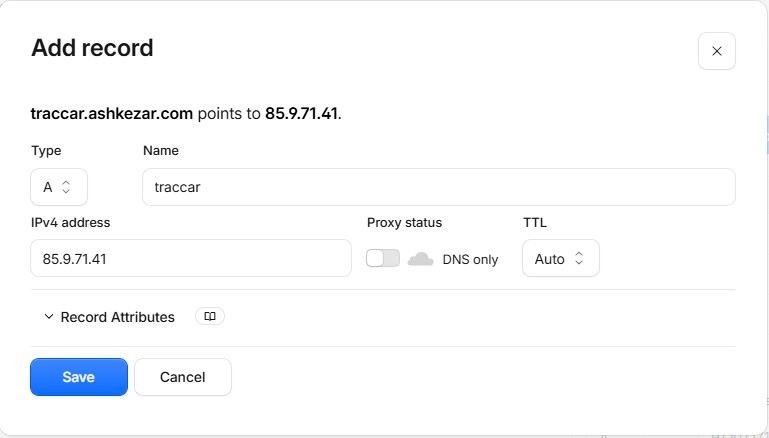
To use the system through the domain, first log in to Cloudflare and after adding the domain, add an A record and connect the desired subdomain to the server IP as shown in the image below. In the next step, we will need it to get SSL.
Step 5: Connecting to the domain via Nginx Proxy Manager
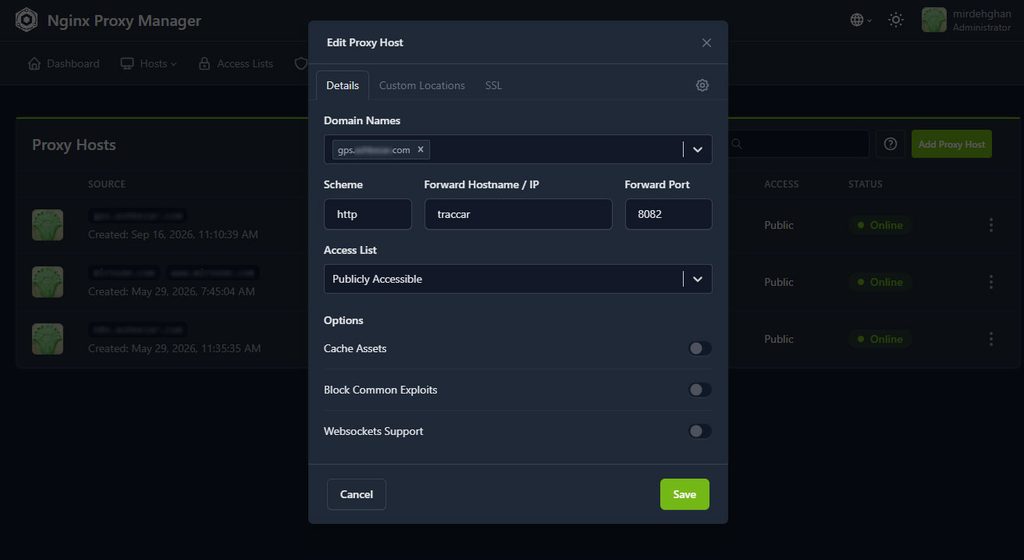
In the NPM panel, I created a new Proxy Host:
Domain: a dedicated subdomain for tracking
Forward Hostname: container name (traccar)
Forward Port: 8082
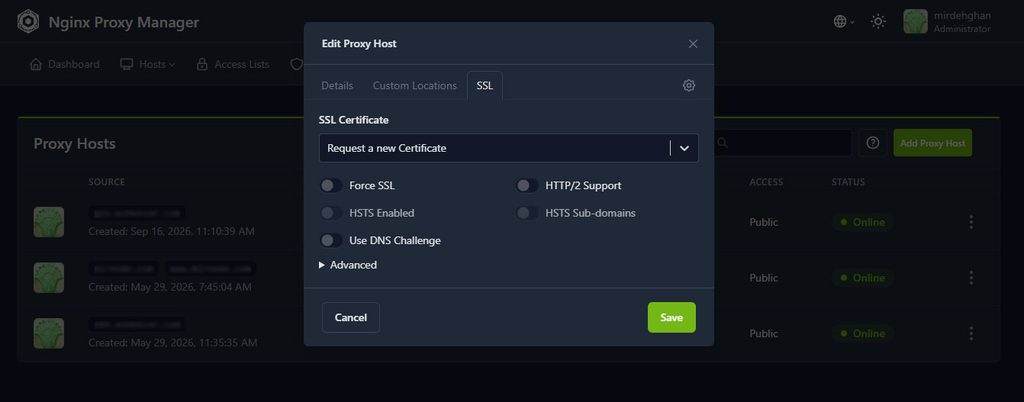
SSL: Enabled with Let’s Encrypt
Step 6: Configuring GPS hardware to connect to your tracker system
Each hardware has a set of instructions for the relevant settings. I am using iTrackesafe in this tutorial. To send real-time location information and other vital settings in this brand and model, we use the following method.
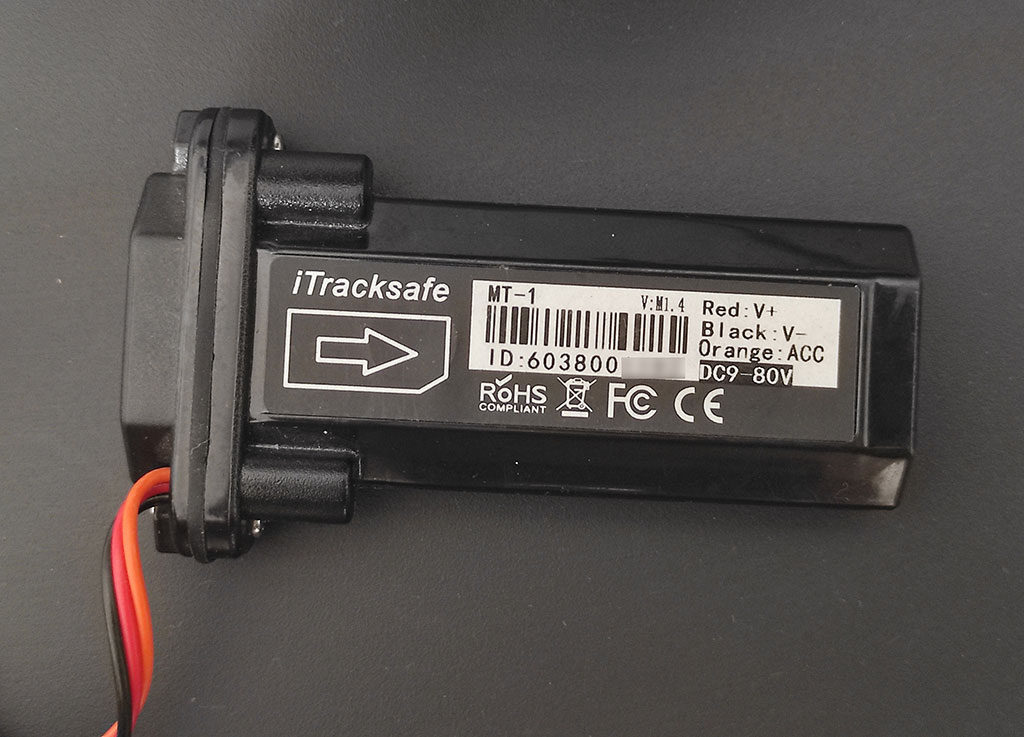
Insert a SIM card into the device and you can configure the device using these messages via SMS.
Set the server IP and port related to the hardware:
The list of supported devices along with the connection protocol and the corresponding port is listed on the Tracker website.
Command: IP+space+IP/Domain+space+Port
The command in this example :
Replace my address with your domain name and sent this code via SMS :
IP traccar.ashkezar.com 5013Step 7: Registering in the system and adding GPS hardware
Everything is done! To open the GPS system, open your subdomain in the browser and after entering the requested information, complete the registration. Then you can enjoy the tracker system by adding your own GPS hardware.
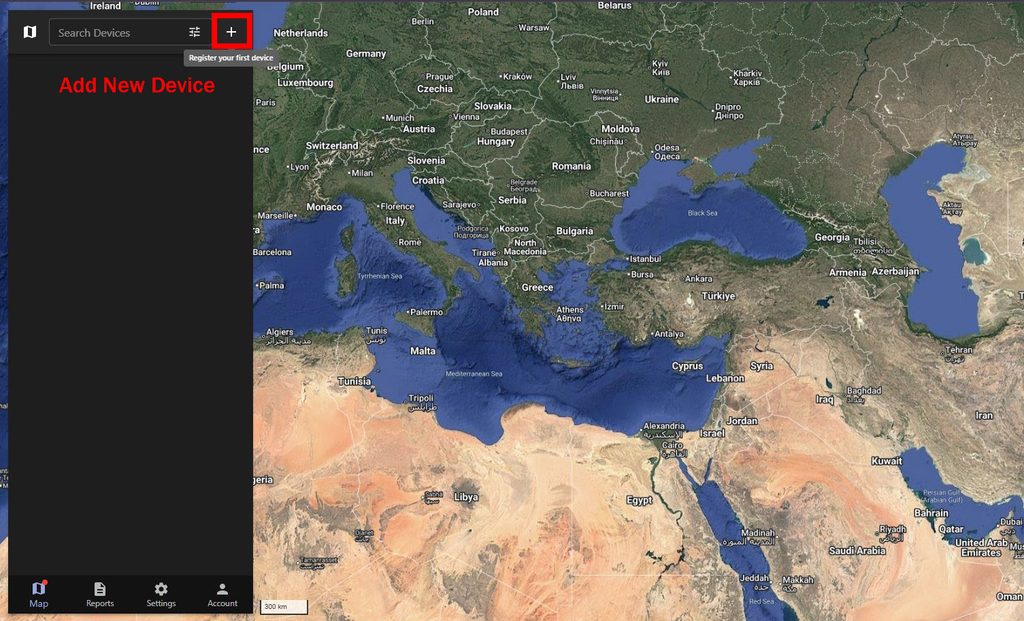
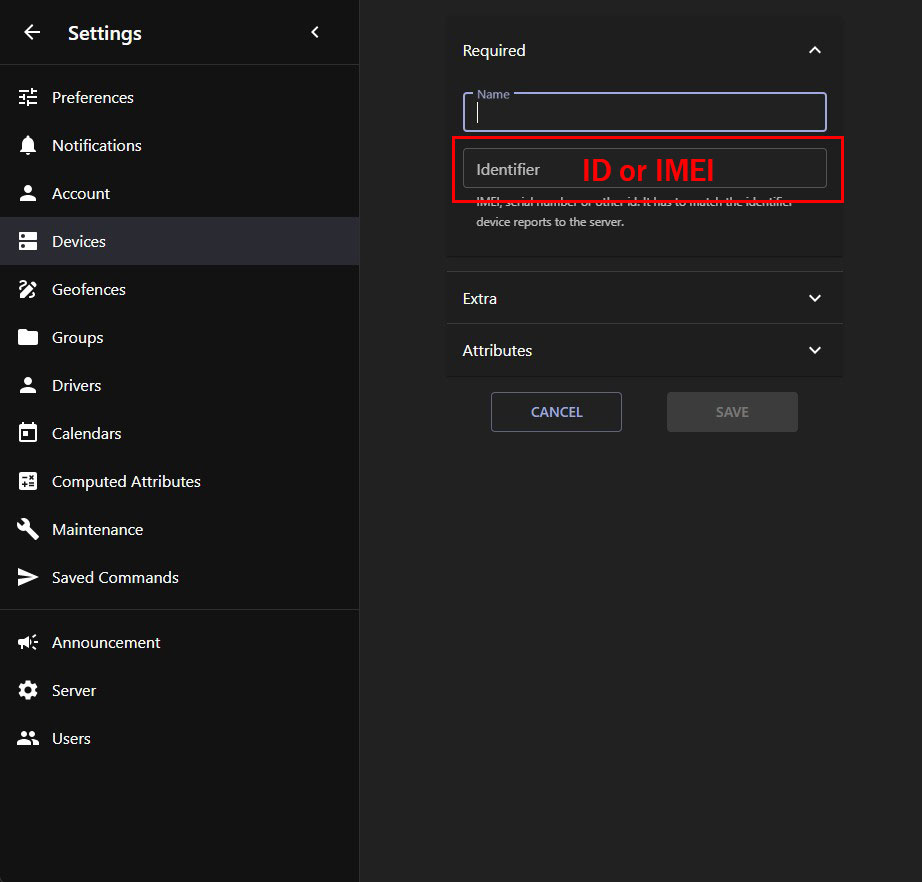
Click on ( + ) to register your first device , select a name then enter ID or IMEI of GPS Tracker and Save.
Result: Resource usage after installation
After booting, Traccar consumed about 300 MB of RAM, which was in line with the initial prediction. The overall system usage went up and some of the swap was involved, but the CPU remained quiet — meaning the main pressure was on memory, not the processor.
Summary and important note for anyone who wants to do the same
On a 4 GB server with several other services already running, adding Traccar is possible, but there is a risk of instability without following two points:
Be sure to create a swap file, even if you think you have enough RAM.
If possible, use a lighter database (like H2) instead of setting up a separate MySQL.
After installation, monitor resource usage with
free -h
docker stats
for a few days; if Swap usage keeps going up, it’s time to either upgrade the server’s RAM or set a memory limit for some containers.
Strict resource limits in Docker Compose:
You should not allow any container to exceed a certain limit. In the docker-compose.yml file of each service, be sure to use the mem_limit and cpus parameters.
Example of recommended settings:
services:
  traccar:
    image: traccar/traccar:latest
    mem_limit: 1g # Maximum usable RAM for Traccar
    cpus: 0.5 # Half-core CPU ceiling
    # other configs ...

  wordpress:
    image: wordpress:latest
    mem_limit: 1g
    cpus: 0.5
    # other configs ...

  n8n:
    image: n8nio/n8n
    mem_limit: 512m # 512MB cap for N8N
    cpus: 0.3
    # other configs ...